
A Full Width Page is one that has no sidebars and all the width of the page is just content. Such a page has many applications. You might not wish to show sidebars on your contact page for instance. Well, lets see some better applications of Full-Width Pages.

Making a Sales Page – Traditional sales pages don’t have sidebars (haven’t you seen those pages with lots of customer feedback and that pages where you have to scroll miles and miles to see the end?). Removing Sidebar makes it look better.
Search Result Pages for Google Custom Search Engine – If you choose to display results of Google CSE on your own pages; the script they give you can insert ads on the right of the searches just as we see on Google. A full width page can make way for the ads.
Enough, lets do it.

Going Full Width on any WordPress Theme
As an example, I will use this Theme – This Just In!. It’s a simple and elegant Free Theme and comes with an image gallery just below the header.
Step 1 – Make a Page Template
Pages in WordPress are defined by page.php in the theme. Make a copy of page.php and rename it as fullwidth.php. It doesn’t matter what you name it, it can be yourname.php instead.
Now add the following to the start of the code in fullwidth.php :
<?php

/*

Template Name: Full Width

*/

?>
Save and lo! we just defined a custom page template.
Step 2 – Rip Off the Sidebars
Sidebars are included in the page template using this :
<?php get_sidebar(); ?>
Delete it from fullwidth.php. In most themes it should be towards the end of the code. Sidebars are gone.
Step 3 – Define a Full Width Style
Open up style.css and find where the style of the content area is defined. Usually its called #content. In our example theme, the style is defined as:
#content
{
margin: 5px 35px 0;
font-size: 1.2em;
width: 575px;
float: left;
display: inline;
}
You can see that in line three the width of the content area is defined as 575 px. Copy paste all the above said code and define a new ID #contentwide as:
#contentwide
{
margin: 5px 35px 0;
font-size: 1.2em;
width: 850px;
float: left;
display: inline;
}
The only change being the width in line three as 850px. The value 850 px was found by trial and error.
Step 4 – Add the style to the Page
If you try making a full width page after step 3, you will get a page with no sidebar, but the sidebar area is blank. Why? The page still uses the style in the content ID. Open up fullwidth.php again and change the id content to contentwide in the code.
<div id="contentwide">
That’s it, upload fullwidth.php and style.css to the theme folder.
How to Actually Create a Full Width Page?
Open a New Page Editor. Write in some content. From the right sidebar of the page editor, from the section called Attributes, select Template as Full Width.
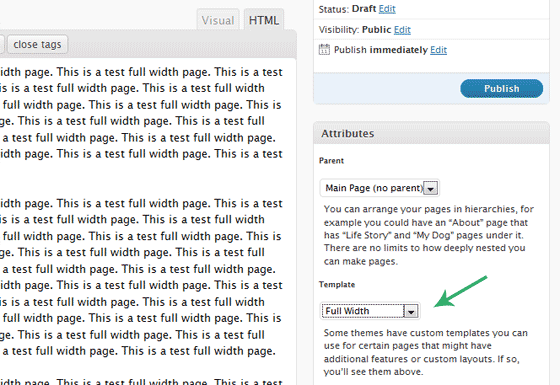
Publish the page. Congrats!
If you have any queries or if I missed anything, use the comments. Hope you enjoyed it and found it useful. What are you using that full width page for?
P.S: If you need help with your theme to make a full width page, contact me with your details.
P.P.S: Also checkout some of the themes that I love here and here. They come with Full width support and great theme options and support. I use these theme on a lot of my projects.

I am a WordPress product developer and creator of Image Attributes Pro. I am passionate about solving problems and travelling the world.




This is a great tutorial for creating squeeze pages for your blog if you don’t want to pay for one! Thanks!
Thank You! and Good luck, you got a nice blog there 🙂
I’ve used full width on one of my blogs but it is not working as effectively as I would have hoped so I am going to go back to the two column version.
I had used it as a welcome page some time back, it did well that time 🙂
Very cool, and just what I needed. Thanks for taking the time to post.
You are totally welcome 🙂
Hi and thanks for the tutorial!
It’s just what I’m looking for although I’m a little stuck.
I’m using manifest as my wordpress theme, I tried the above and it doesn’t appear to work.
It’s a single column template and as opposed to having ‘#content’ it has a #coreContent.
Would you have any advice for this theme?
Many thanks!
The theme doesnt have a sidebar, rt? I think you are looking to increase its width, so you should probably do that. Isnt it?
I got the template created, and I can see it in the drop down field when I edit pages. But when I select the full width template and save the page, it remains under the default page. Also, I think my theme is way more complex than the one used in your example, and I can decipher which areas to modify to make the full width template actually full width. There’s no one place that I can change the width. There are several widths listed, but I can’t test any of them until I can get my page to save as the full width template.
Any ideas?
@Daniel – Which theme are you using? Maybe I can give it a look.
Thanks for the tutorial! I’ve noticed that many of the newer premium themes are now making it a default option to select whether a page is or isn’t full width. I’m glad that they are finally catching on! I use Woo Themes for most of my sites, and all of the newer themes have this feature.
woo themes really rock, the wp 3.0 is borrowing some of their code for menu management. 🙂
The tutorial helped…but now I’ve discovered a bigger issue. My attributes metabox is missing! I’ve made sure I’m at the latest version of WP, optimized and repaired SQL tables, disabled and re-enabled plugins…I’m shooting blanks now.
Thank you so much for the tutorial. I love the “This Just In” theme but was having issues with some content bleeding over into the sidebar. Your fix was perfect for this:
http://www.yourbestmooove.com/blog/advanced-search/
Thank you so much!!! But… how can I add posts in a full width page??? Could you help me?
Thank you so much for this clear explanation. I looked everywhere for this and this explained it clear and concisely.
Thanks again for this.
You ROCK…thanks so much!!!!!
wow thanks so much for this easy to follow tutorial !!!
Thanks for this lucid and useful explanation.
I was able to apply your advice to a custom child theme of the twentyten default theme that ships with WordPress 3.0, but I had to make a couple of tweaks. I’m a novice, so these may not be best practices, but I share them in case they’re useful.
First I followed the instructions here for creating a child theme.
In Step 1, I added fullwidth.php to my child theme’s folder, not to the main theme’s. (It’s still a copy of page.php from the main theme.)
In Step 3, I didn’t change style.css in the main theme, but in my child theme.
In Step 3, I copied EVERY reference to #content from the parent’s style.css to the child’s style.css. I renamed all of them from #content to #contentwide. I believe there were 62 of them.
In Step 3, instead of changing the width under #contentwide, I added the margins, from something like this in the parent style.css:
#content { margin: 0 280px 0 20px;}to something like this in the child style.css:
#contentwide { margin: 0 20px 0 20px;}That’s it. I haven’t tried all the features yet, but it appears to work.
Thanks so much! You saved me a headache tonight. I think I can all it a night sooner too!
ah, i can understand that feeling. great 🙂
It works Great
This worked perfectly on my GamePro theme. Thanks!
I’m exhausted trying to make full page in twentyten. When I read Micheal’s method, I thought perhaps that is the thing I have not tried; changing every occurance of content to contentwide in child style.css. There are so many talks out there about changing a few lines of codes such as the width, but never work.
However, after the changes, it still does not work. I don’t want to give up on twentyten after having done so much on my working protocol. Any help would be appreciated.
This is my modified fullwide.php after copying from page.php
<div id="post-” >
” . __( ‘Pages:’, ‘twentyten’ ), ‘after’ => ” ) ); ?>
<?php edit_post_link( __( 'Edit', 'twentyten' ), '’, ” ); ?>
After adjusting the floating of container div with the early instruction, I finally got rid of the sidebar with full width.
Brilliant tutorial. I’m fairly new to WP but you made it simple enough for me to understand and it worked first time! Thank you for taking the time to post this.
First of all, your blog, especially the topic here “make a page wide” is excellent. I thought it would work for me, but the theme I am using “exciter” has no sidebars, has no entry as #content either, but I found this “div.page .column {” but it had very few entries and I did not dare to change. Anyway I have bookmarked your site, subscribed and wish you would post similar items.
BTW, do you know of any book/site/tutorial that could teach all this? I mean simpler things? I have seen many tuts but even though they aim for beginners, they miss simple topics such as “how to draw a line” or “how to give extra space between lines” or “what is a .div tag” etc. May be sometimes you would write on that. Thanks for writing such a good blog. Cheers
This blog is a lifesaver. I use the EProduct theme from Templatic and they provide a “full-page” php template but it looks really stupid and doesn’t just remove the sidebars.
After about two hours of fiddling around, flipping back and forth between this blog and my admin section, I finally figured it out!
My site doesn’t have any full-width pages yet but it will so very soon.
THANKS!
This blog is a lifesaver. I use the EProduct theme from Templatic and they provide a “full-page” php template but it looks really stupid and doesn’t just remove the sidebars.
After about two hours of fiddling around, flipping back and forth between this blog and my admin section, I finally figured it out!
My site doesn’t have any full-width pages yet but it will so very soon.
THANKS!
Really a wise post, This info was very useful for me for to make the bases for a fullwith page in a template taht have not this resource, Thanks !!!
Maybe you can help, I´m using the smartone theme. When I tried to edit a copy of the page.php file, I couldn´t find the “get_sidebar”-part, that I am supposed to delete. What went wrong? Thanx in advance, your effort is greatly appreciated!
I’ve tried using your steps with little to no results.
I mean it all makes sense to me. It should work, but I’m not seeing whats causing the mix up.
Once I do your steps and then try to make a test full width page and view it… I get a solid white page. Even without source. Any idea what could be causing this?
The site is: http://www.dimmakrecs.com & the test full width page is: http://www.dimmakrecs.com/full-width-tester-page/
Thanks in advance.
I think you should try it again, I find the theme to be just a simple theme. If it doesn’t work again, please let me know.
I’ve finally gotten the code to work. Thanks.
However it only working properly in Firefox. In chrome and Safari it’s still showing the sidebar under everything.
you can see this at http://dimmakrecs.com/artists/
I’ve taken the “get_sidebar” out but for some reason its showing up on Chrome and Safari. Any ideas?
Nevermind. I think I fixed it.
This post is one of the reasons I love the internet. 1 google search + your post + 5 minutes = 1 successful completion of creating my full page template for my site. You’ve been added to my bookmarks as resource. Thanks!
Thanks!
How do I make my home page full width with Thematic, without making it static… ? THANKS
Bravo! Finally, I made it! Thanks to your tutorial. After removing the sidebar, I can add a greater size of iframe without causing any conflict anymore! Just that, I still can see the blank sidebar place, but already enough for me. But, if you are free, you maybe take my site a look on the “contentwide” template page. Thanks a lot! You really make my day!
OH my goodness. I took all day to figure out how to go to a full width post and insert a pdf at full width on my WP-Ellie theme. Your tutorial was the key. solved the whole problem I was having in like 5 minutes. Actually WP-Ellie has a page with no side bar options and it was doing exactly what you talked about in beginning of Step 4. So (not knowing a dang thing about code) I just went into the code for “Page–no Sidebar” as you advised for the page and changed it to “contentwide”! Whoopie, I could put in a whole page of text now.
The pdf thing took quite a while too but changed the Embed code to 850 (as you suggested and Viola!) another problem solved .
IS there a “Contribute” button around here somewhere??? You are so awesome!
Thank you!
Contribute buttons are a way of thanking people who give great advice. You can make it in paypal. Often people name them “Buy me a beer”. It is just a way to say thanks to people who really help you. THey put it at the bottom of a post or in their sidebar. The Chief Blonde
You already make me really happy, people dont do that, you know! Thank you so much 🙂
You rock. I usually know only enough to get into trouble. But, this worked perfectly for me. Thanks for the concise instructions!
My pleasure 🙂
The tutorial makes sense, but the Full Width page only moved the sidebar a little bit: http://www.barklowimages.com/about/ Any ideas? The template is Versatility Lite 1.6. Thanks.
You are almost there. The background uses an image, go find the image VersatilityLite/images/cont-wrap.gif and edit it in photoshop and remove the double shades into one. Let me know if you dont get it right.
Hi,
I’m also using versatility lite and ran into problem.s When I open up images/cont-wrap.gif I only see a line that is 900px by 1px. I can’t find the image that creates the 2-side background. It’s driving me nuts! Help?!
I checked out your site and found this image: http://www.ilenerosenblum.com/wp-content/themes/VersatilityLite/images/cont-wrap.gif
its 900px wide and has two shades. For the full width page, you will have to change that to a fully white image of the same size 🙂
Got it. I had to extend the CSS .post width and edit the background image files. Thanks for the tutorial post.
You are welcome!
thanks thanks thanks.I was finding for this solution how to display installed simple press forum on full page.I wasted time for 3 4 days but i cant solve the problem but at last your information had solved this if any one facing same problem as mine check this link whether you may see what i changed and how my forum is looking like.http://www.daytodayinfo.com/forum. There is very less information on the web about this simple forum plugin installation in worpress and changing the forum to full page.Thanks very much bye.
You are welcome!!
thanks for the info but it still is not clear to me how to make the width bigger. i use twenty ten theme and i want to have my whole theme bigger and larger. i also miss the part of attribute because i can’t find it no where.
Thanks a lot for this useful tutorial. I have gone through a lot of articles and tutorial video’s on how to create a full width page template. and they didn’t work.
after reading this Tutorial I was able to create a full width sales page on my site.
thanks again.
Arun, in the page of forum the right sidebar area shows blank. But I’ve deleted necessary code from new template.
http://www.oyun dragon.com/forum (delete spaces)
Hello. I hope this thread is still active 😀 Anyways, i had a problem on step 2, i don’t have anything called ” ” in my page.php (fullwidth.php), sooo.. I am kinda lost at this point.
Is it named diferent in any way or something?
Here is my fullwidth code, if that helps.
<div id="post-">
<?php the_content('Read the rest of this page'); ?>
'Pages: ', 'after' => '', 'next_or_number' => 'number')); ?>
Thank you for awesome guide, i just hope i can get it to work 😀
guess my code didnt show.. uhm, here it is.
<div id="post-“>
<?php the_content('Read the rest of this page’); ?>
‘Pages: ‘, ‘after’ => ”, ‘next_or_number’ => ‘number’)); ?>
The instructions were very easy to understand. I did everything exactly as described but when I go to add a new page there is no option in the attributes for “fullwidth” What did I miss?
It works Great
Well this post just saved me $68 – so thanks! I was thinking of buying a premium theme purely because the free version did not have the full width page option. Now I don’t need to, thanks again!
Great to know that! Maybe its a good time to use my donate page – https://millionclues.com/donate/
Just saying. Glad to know that it helped 🙂
Great tutorial! I got it to work on my first try but I was wondering if I could use this to change Buddypress pages to full width pages. When I enable FullWidth on regular pages, the sidebar is hidden but Buddpress pages still show the sidebar. any help would be awesome!
thanks again
BuddyPress has its own files, check inside the BuddyPress themes folder and you will find the file. Do the same there and it should work.
Any idea for Parament theme?
http://wordpress.org/extend/themes/parament
I tried,but no content I could change.Any idea?
Thanks 🙂
Delete the sidebar and increase the width of #main, that’s it.
I did remove the sidebar earlier,but I didnt know wh
}ere the part in css was to change.I changed it to this:
#main {
display: inline;/* fix double margin */
float: left;
margin: 0 25px 30px 10px;
width: 660px;
}
}
#mainwide {
display: inline;/* fix double margin */
float: center;
margin: 0 25px 30px 10px;
width: 1000px;
Sadly doesn”t work either.
screenshot:http://retrosmiles.com/wp-content/uploads/2012/01/2012.01.01_09h23m03s_001_.jpg
In your theme files like index.php and single.php and page.php wherever they have used main (it will be like id=”main”), change it to id=”mainwide”. That will fix it 🙂
I changed it to this(they are all the same)But does”nt work
div id=”container” class=”contain”>
div id=”container” class=”contain”>
seems code is not showing
http://retrosmiles.com/wp-content/uploads/2012/01/2012.01.01_09h46m22s_002_.jpg
try refreshing your browser, cuz when I try with mainwide here, it works. Do it on the full width page template.
try refreshing your browser, cuz when I try with mainwide here, it works. Do it on the full width page template.
Refreshing as in Control + F5 for loading from server and ignoring cache..
try refreshing your browser, cuz when I try with mainwide here, it works. Do it on the full width page template.
I did ,it doesnt work for me.The sitebar is gone,the content block doesnt resize.
Thank you for the effort for helping me.Enjoy the beer 😉
Can you send me the link to the test page using the template you created?
Thanks btw, but I would love to finish this 🙂
grrr http://retrosmiles.com/casts/deceased/
😉
The page template still uses “main” and not “mainwide”. Are you sure you changed main to mainwide in fullwidth.php ?
see this, I edited the page in firefox and just changed main to mainwide and it worked – https://millionclues.com/wp-content/uploads/retro.png
w00t It worked! Thank you very much!
Now my beer makes sense! Thanks! Happy New Year 🙂
The will to help others is sometimes more worth then the result.
Happy New Year too.
ps I did change all pages except the full width page 🙂
thanks again.
You are welcome Peter!
I have now the habit to select a theme and customized.. I’m getting really good at it..I kind of new I could customize templates, but had been lazy to learn so I will pick themes that have the option on it, which reduced my selection of themes I could use..but now with this simple customization (which worked great on my site) I feel I’m an expert and can do anything I want in wordpress..thanks for sharing!!!
hello, Great tutorial, very simple to follow. However I believe there is a possibility I have done something wrong! When I set the width wider then the original theme, my content hides behind where the sidebar used to be? any ideas? http://www.ukspaceforum.co.uk/?page_id=800
If it helps at all, my theme was created with Artisteer.
Oh, my bad, Instead of being as it mentions in the instructions, it is actually shown as . Slightly different, a noob like myself would easily miss it!
Thanks Anyway!
Genius!
Took me a while to tweak all the settings in the stylesheet as there were also some width-limited classes.
Your post helped me through the whole way. Brilliant! Thanks so much.
Pete
thanks man. very nice tutorial you are given thanks a lot
cheers 😉
You are my SAVIOUR!!! I can’t tell you how many times I have tried to widen content for just a few select pages and got so frustrated I quit just to try again and quit and on and on. Then I finally came across your post (guess I just needed to type in the right keywords.) You have completely saved me and made it so incredibly simple! It worked Yahoooo!!
Thank you, thank you, thank you!
You are welcome! 🙂
Hi:
I just read your article on making a full width page wordpress and I went to the Elegant Themes and they look great and are what I want.
Question: If i sign up for these themes and get one, would I still have to go thru the steps in your article or would the theme prettymuch have all that pre-configured so I do not need to go thru the steps.
Also, I have no problem downloading to my computer then in wordprss plugins using upload to get a plugin uploaded and activated. Is this the way I get the theme on to my blog?
Or does it require the use of FTP.
I have never been able to get any FTP figured out and opened on my site, much less transferred any file(s). Tell me I don’t have to go the FTP route!
Thanks in advance for your help!
Mike Farber
Hey Mike,
1. The themes from Elegant themes, most of them have Full Width page built in. You do NOT have to go through the instructions on this page.
2. You can upload the themes just like Plugins. Go to Appearance > Themes > Install Themes > Upload Tab (go here: wp-admin/theme-install.php?tab=upload)
Here you go: https://millionclues.com/go/ElegantThemes/
Good luck!
Thanks for your help!
Also, I am wondering if there are any free templates available with the full width buildt into them so I can practice uploading them and working on them as a tester before getting what I want at Elegant. I would prefer to make my mistakes on a practice site and get some experience there first.
Mike
Google should be your friend 🙂
Real quick, I would like to make certain of something.
In the Elegant themes will I be able to write in my pages to include the area that would otherwise have included the sidebar??
I am practicing on the standard 2011 theme and although I changed attributes to one column (no sidebars) I cannot access that space formerly occupied by the sidebar. Very frustrating and I dont want that to be the case with another theme.
Your help in clarifying this would be greatly appreciated!
Mike
Yes.
See the theme preview, most themes have the full width page under page templates on the menu.
Check for Full Width.
Thank you sooooo much. I used it to create a PHPBB-forum inside my wordpress-blog
awesome!
back againi.
I’m trying to type up a list but not using the left margin. It is in the midle of the page.
My writing is all over the place and I can’t control it. For example, say I want this list:
1. Attend the weekly meeting of bass fishing.
2. Pick up the kids after school.
3. Get the laundry washed and buy a gallon
of milk for dinner.
====================================================
What I get looks more like this:
1. Attend the weekly meeting of bass fishing.
2. Pick up the kids after school
3. Get the laundry washed and buy a gallon of
milk for dinner.
=============It is a mess! How do I control format, margins, etc.=========
PS —
This is almost funny.
I actually typed each line in the center of the Comment area. Only when I view it, each list is hugging the left margin.
I am trying to follow your instructions using the This Just In theme.
Question:
I want to use my own header. How do I replace the photo/image that is on the top fot he theme page (ie. header)? I only see two options – widgets and menus and neither helps.
Do I go into Header.php?
If so, what do I change? Else, what do I do?
Thanks so much, I just made the full width page thanks to your site.
Awesome! Glad you had fun 🙂
This was a great tutorial. I’m trying to increase the page width of my post. I don’t want to get rid of the side bar. I just want to increase the width such that the posts and the sidebar are stretched to full screen and i want the width of the sidebar not to change. Can you please help?
Excellent………………………kam ho gaya.
Glad to hear that Ganesh 🙂
I am using the Smartone theme and there is no sidebar mentioned in the page.php
There is a separate sidebar php.
Any ideas how to get it to work for this theme please?
Great tutorial!
I am trying to make a full width page WITHOUT the site navigation bar. I am using Twenty Ten. Please help!
This worked great for me on my One Day At A Time Template. I got rid of the right column so I could use Iframes to fit my Amazon AStore on the page.
http://www.breastcancersymbol.com/products
Only took me about 5 minutes. Great Tutorial… Many Thanks!
Vince Bono
Thanks Vince, glad to hear 🙂
thanks for the help. got sorted within 10 minutes 🙂
Man you are awesome. I needed to make a full screen page but was worry about the other pages.
Thank you so much 🙂
Glad to be of help mate 🙂
this is very helpful thanks alot. But the theme i am using it does not contain any content class but there is something called entry. Anyways thanks for the help.
Each theme is a bit different, glad you figured it 🙂
How i connect full width.php to show my gallery attachment image when click to show full size in full width template with image navigation
quite useful it was, thanks.
dear your post is up to the mark but i can’t apply on my website please tell me, i use karmela free wp theme and i want use free space of this theme, actually i want to spread my all pages on full width
You are a life saver. Thank you so much!!
Thanks for your lesson, I could do it very easy for my websites
Saved a lot of my time. Thanks for sharing info.
Thanks for the tutorial. Probably better to use %’s now with CSS3 instead of guess the width?
If your theme is responsive, %’s are the way to go 🙂
This is awesome! So easy to follow and worked perfectly, thanks!
Your website is so beautiful 🙂
Thank you! 🙂 Your instructions helped with that!
I already have a page full width in theme files , how to enable it show in full width. Which file i need to edit to enable.
Hey Dilip,
Edit the page you want to be a full width page and from the right sidebar in the backend page editor, choose page template as “Full Width”.
see this: https://millionclues.com/wp-content/uploads/select-full-width-template.png
Thank you so much! Exactly what I needed. Thanks for taking your time to teach this trick. God bless!
Glad to be of help Rita 🙂