
Pidgin is a free and open-source, multi-protocol chat client, that can connect to AIM, Gtalk, Yahoo, MSN, IRC and many popular chat networks.
Pidgin has a Twitter plugin Twitgin. With this plugin, one can tweet, re-tweet, reply to tweets and send DM’s. This plugin can also be used to make backup of tweets.
Saving Tweets using Pidgin
 Download and Install Pidgin.
- Go to Tools > Plugins. From the plugins list, tick Twitgin – Twitter plugin for Pidgin.
- Enable Logging from Tools > Preferences > Logging. Tick all check-boxes.
- Add a new Twitter account. (Navigate to Accounts > Manage Accounts > Add… Choose protocol as TwitterIM, give twitter username and password)
Now Pidgin will fetch all tweets from those you follow and show in and IM window. Every IM you send will be a status update. You can reply to tweets by clicking their username. See your mentions (@replies) by typing in /replies in the IM box.
All tweets including your friends updates and your own tweets, will be saved a text file (or html file, if you had chosen html in the logging preferences). You can access the log from Buddies > View user log… (Use Name as twitter.com and Account as the respecive twitter account.)
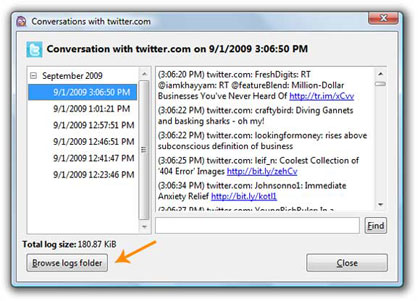
On the window that follows, watch for “Browse Logs folder” button (see image). This opens up the folder with all logs saved as txt files. That’s your twitter backup.
Bonus: Add Facebook chat to Pidgin using Facebook Plugin.

I am a WordPress product developer and creator of Image Attributes Pro. I am passionate about solving problems and travelling the world.





Thanks Friend for the tip. Good thing that pidgin is a multi client messenger too.
I use pidgin for all my chat needs now. Its really good 🙂
Pidgin logo is cute.
Yes it is, twitter and pidgin, they both use the birds 😀
Where can I find the pidgin? Thanks for the tip anyway.
You can get pidgin from pidgin.im. Guess Google helped you before me.
Nice tutorial. It might take a day or two to backup all my tweets. You see, I tweet a lot these days! 🙂
Yep, you tweet a lot. Hell lot 😀
Ya I also use pidgin!