
The StudioPress Church theme that I use right now uses Custom fields to display the thumbnail image on the homepage.
Custom Fields are totally confusing for a newbie, here is a very basic tutorial on using them.
 What are Custom Fields in WordPress?
In simple words custom fields is a way to add extra information with a post.
Custom Fields can be thought like the “For Office Use Only” Fields in a bank application form. They are used to tell WordPress or your theme or any plugin – “Here is what I like to use with this post”.
A Custom Field has two parts
WordPress Custom Fields have a KEY and a VALUE.
Back to the same example, in the “For office use only” box in a bank account application form, there would be fields like, “Account number”, “Verification Status” and the like. These fields are printed on the form and are same on every application form.
Similarly, the key is the part of the custom field that repeats on all the posts. For a specific function the key would be the same and keys are saved after the first use.
The “Account number” assigned and the “Verification Status” is different for every customer and are filled up by the clerk. This is analogous with the value part of the custom field. It is specific for a post and are filled up separately.
Value can be anything and depends on the purpose of the custom field. It can be a link to an image, some text, or a Boolean (true or false) value.
Some custom fields are automatically added by the plugins you have installed, you don’t have to worry about them. Some others need to be manually added if your theme of any plugin demands them.
An Example of a WordPress Custom Field.
As I said before, the StudioPress Church theme uses a custom field to specify the tiny 70×70 image that you see on the homepage. The custom field for the same is:
Key – thumbnail
Value – Absolute link (direct link) to the 70×70 image (eg. https://millionclues.com/wp-content/uploads/free-giveaway.gif )
Using Custom Fields in WordPress 2.8 and beyond
The first time you use a custom field, you have to enter the KEY manually. WordPress will save the Kay name so that you don’t have to remember the key every time. Follow the instructions on the images.
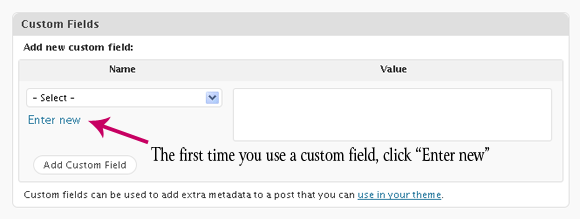
To enter the Key the first time you use the Custom Field
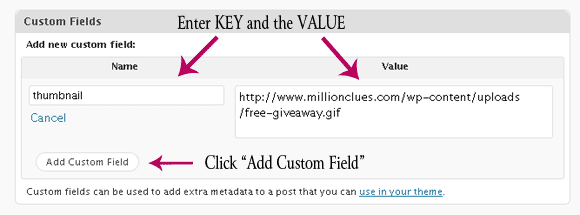
Enter the Key and the value
Congratulations! you just added your first custom field. From now on, the Key would be saved so you can select it from a drop down list.
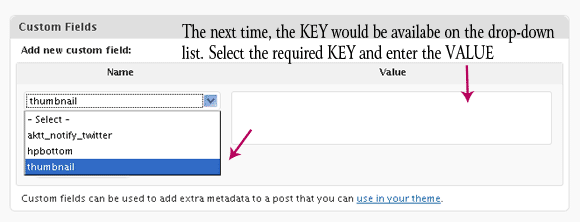
Select the KEY and enter the VALUE
Repeat the same for each custom field. See the end of this post for the custom fields that the StudioPress themes need. How to find the value of the custom field is discussed below.
Finding the direct link to the images via Image-Uploader
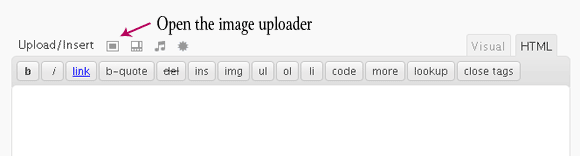
Open the Image Uploader
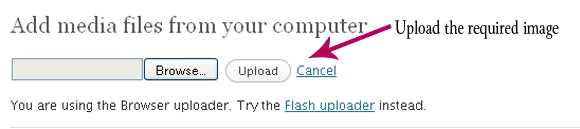
Upload the Required Image
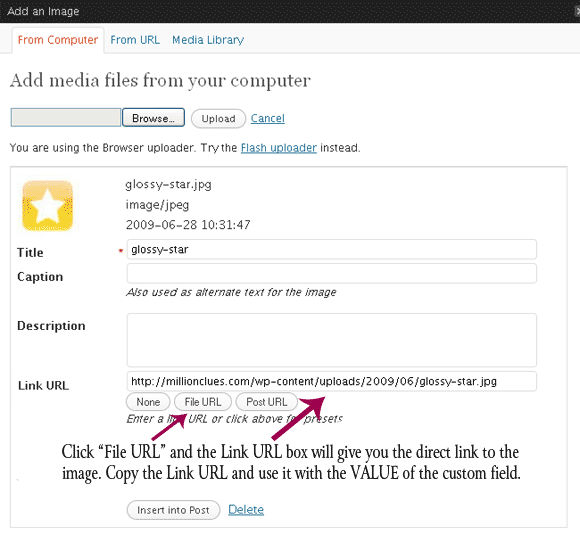
The LINK URL is the VALUE for the Custom Field
Custom Fields for the StudioPress Themes
For the Thumbnail Image:
Key – thumbnail
Value – Absolute link to the thumbnail image (70px X 70px)
Key – hpbottom
Value – Absolute link to the thumbnail image (70px X 70px)
Some themes uses either of the above or both of them, usually I add both these fields so that I can easily change between the themes if I need to at a later time.
For the Featured content gallery, you need to fill the following custom fields.
Key – articleimg
Value – Absolute link to the image that you wish to show in the gallery. (the size of the image should be the size that you specify in the Content Gallery options.
Key – featuredtext
Value – Any text that you wish to show over the image on the Gallery. This is an optional key and if you don’t specify this the first lines from the article will be used.
There are more optional custom fields available, see the content gallery settings for details.
(StudioPress is getting rid of these custom fields and the latest themes uses inbuilt script to include the images automatically. The current themes would be updated soon.)
Update:
Latest versions of the themes uses new custom fields. For Church 4.0, Lifestyle 4.0 and the newer ones the custom field for the thumbnail image is:
Key – thumb
Value – Absolute link to any image. (Configure Media Settings as follows)
In Settings > Media : Set thumbnail size as 70px x 70px.
For use with the Featured Content Gallery, set Medium size (in Media Settings) as the size of the image you wish to use with the Gallery. If this is configured, you no longer need to crop images manually and you can use any image with the value of FCG.
Digg more into WordPress Custom Fields…
Some resources that might help you read more about Custom Fields are make use of it.
- Custom Fields Documentation from WordPress codex
- Implementing WordPress Custom Fields and Tips and Tricks
- 28 Ways to use WordPress Custom Fields
More WordPress Resources
I have created a Twitter account to share resources related to WordPress, Blogging, SEO and the like. Follow Million Clues on twitter to catch all of them. Also, if you liked this post, share it on twitter. Thanks for that!

I am a WordPress product developer and creator of Image Attributes Pro. I am passionate about solving problems and travelling the world.




Arun,
This is an excellent article, I had used custom field many times but never thought of writing. That too this is much explained here. Thanks for taking 100 % effort to write such a great article.
Keep up the spirit.
Girish
Hey, thanks for this awesome support. I had been thinking about the same for months. Atlast made it 🙂
Most of the users are not using this useful function in our blog but this is really very cool to add extra matter in our posts.
Thanks Arun.
Ya, I don’t think many fill up the All-In-One SEO plugin’s fields either. The description that you use there is taken by most search engines, a great way to promote the post I guess. 🙂
Great article buddy! I use custom fields for my video posts and thumbnails too. 🙂
oh I see, those videos that are post specific are also via custom fields, hmm, I have seen those in the thesis theme too, always wondered how they did it. 🙂
Why, what a great post! 🙂 Super stuff…I’m always learning in the WP world.
Wow! Guess you are in love with WP, the same way you are in love with Twitter? Both are great things of our times.. ahem.. 😉
Perfect. This was an article i should have seen 2 months ago. During that time i used the digital statement theme in wordpress with a free host . I wondered how people add the images just to the left of post as seen in that theme. I asked many but there was no hope. Atlast i was some how able to figure it out (i was new to wp at that time :)). Great work friend. This will now help many new budding wordpress bloggers.
Hey, why didnt you ask me then? In future, you get stuck anywhere, feel free to drop in a mail or a comment and a reply is assured! 🙂
Sure Friend.
Really enjoyed reading your detailed article! Thanks
I use the custom field on my blog for my images
Cheers
Sandeep
Hey, thanks…
I thought many would be scared away because its too basic. Well, it worked 🙂
Thanks for the tutorial. this will be really helpful for all the newbies in wordpress
Glad 🙂
Thanks for this post. I have been wondering what the WordPress Custom Field was and how to use it. Just have not taken the time to figure it out. Your detailed post provides the info all in one place and very well done – a good tutorial.
Thanks Minton, Glad that you liked it. Feel free to drop in if you need to know anything more 🙂
very nice dear
I just purchased church theme and was confused abt custom field but thnx to millionclues.com who let me know
You are welcome, enjoy the theme 🙂
Wow Article , I thought it was exceedingly great
I look ahead to more great postings like this one. Do you have a subscription I can subscribe to for new posts?
Great article and explanation for newbies!
I have a question though….I have created a custom field to display unique images on each page. I want these images to be links. How do I do this? Each image is customized for each page and the links are different for every page.
Thanks!
You probably have to add another custom field for the link and make some changes in the code of the page. Here is another tutorial where I demo how to use custom fields in code, it should help you, provided you are comfortable with the code:
https://millionclues.com/problogging/wordpress-tips/add-custom-status-or-notes-to-a-post-without-plugin/
Good luck 🙂
This question was answered in detail here:
https://millionclues.com/problogging/wordpress-tips/custom-image-and-link-for-each-post-using-custom-fields/
Thanks for the lice tutorial. Everyone are unaware from Custom fields. They have to work on custom fields for better work.
WordPress Video Tutorials-39 Step by Step Videos http://www.filesonic.com/file/199042372