
There are many reasons why you would need to show off some tweets in your blog posts. You might want to do so while…
- Writing reports of any events that was extensively covered by live tweets.
- Sharing a funny story from twitter where you might have to show some tweets.
Reasons could be plenty, but how will you do it? Binny V A presents the app that you had been waiting for. (You might remember him, he is the one who did 13 WordPress plugins in 13 days)
First let me show you an example. This is a piece of the conversation I had with my friends from Twitter Coffee Club.
@Sudh4: Memoirs of a Phenomenal Easters Eve – http://goo.gl/UTuf by @ArunbasilLal #coffeeclub
at 01:59 AM, 03 Apr 2010
@rM1L: Finally The @arunbasillal write a post for #coffeeclub blog #OMG 😀 #lovingItInAthousandWays
at 03:28 AM, 03 Apr 2010
@VENKSH: @arunbasillal dude v should bring back the #hashtag again wat say.. @Sudh4 @cheth @rM1L #CoffeeClub members get ready for funn again..
at 11:44 AM, 04 Apr 2010
@Sudh4: @VENKSH Haan bring bring.. I’m gonna b busy n mostly offline frm nxt sat 😀 @arunbasillal @cheth @rM1l #coffeeclub
at 11:51 AM, 04 Apr 2010
@VENKSH: @Sudh4 try to tweet from mobile.. @arunbasillal @cheth @rM1L #coffeeclub..
at 11:53 AM, 04 Apr 2010
@ArunBasilLal: @VENKSH Well, someone has to invent a twitter app for my mobile then 😛 – http://u.nu/8cn38 #3310 (cc: @sudh4) #coffeeclub
@Sudh4: @VENKSH Have to buy a new mobile then.. can tweet from Arjun’s but he’ll not give me 😛 @ArunbasilLal #coffeeclub
at 11:58 AM, 04 Apr 2010
@VENKSH: @arunbasillal he but u tweet via text dude. u need 2 send it to some number that depends on service provider @Sudh4 @cheth @rM1l #coffeeclub
at 11:58 AM, 04 Apr 2010
@Sudh4: @arunbasillal Sometime u tweet from mobile na? 🙂 Then that’s ur neighbours kya? 😛 @venksh #coffeeclub
at 12:00 PM, 04 Apr 2010
@ArunBasilLal: @VENKSH Or use SMStweet (http://www.smstweet.in) No extra charge #coffeeclub 😉
at 12:03 PM, 04 Apr 2010
@ArunBasilLal: @VENKSH Wish I had GPRS, Tweeting via SMS is not that fun, you have to type in all those weird usernames 😛 #coffeeclub
at 12:04 PM, 04 Apr 2010
Without further ado, here comes the app:
Tweet Freezer
Tweet Freezer asks you two questions in the normal mode.
1. What should it search for to freeze. This is where you enter the search term, like the hash tag of the event you are writing about. In the above example, I used the search term #coffeeclub, we often tag all our chit chat with the same tag.
2. The list of users whose tweets you would like to display. This is an optional field. Enter the list of usernames (comma separated without spaces in between).
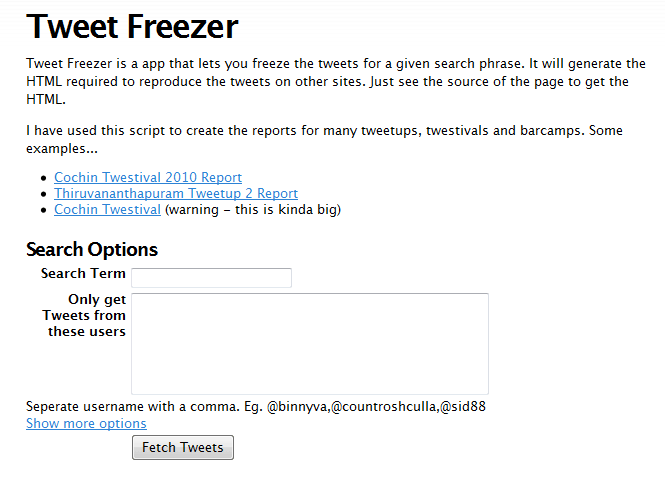
Tweet Freezer - Note the More Options Box (click for full view)
The Show More Options link gives you options to edit the default format of the output, or tell the app only to fetch tweets after a particular tweet (then you have to give the tweet id) or after a specified date.
Using Tweet Freezer
Tweet Freezer is easy to use.
- Enter the search term, and the optional fields depending on your purpose. Click Fetch Tweets. The page will reload with the tweets.
- View the source code of the page. IE users: Right click -> View Source. Firefox Users: Right Click -> View Page Source. Other Users: Go play.
- Scroll down until you see a solid line of hash. What you asked for is in between the solid hashes. Refer image. Copy the code in between the hashes.
- Go to the HTML View on the post editor of your CMS. Paste the code you copied in step 3 to the place where you need it. Yeah, it looks good 😉
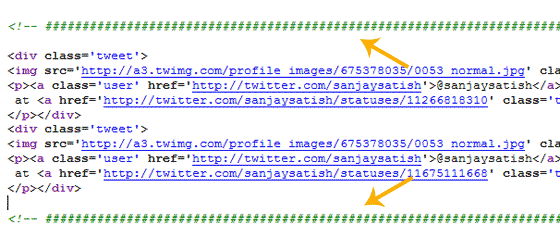
Solid Hashes - Copy Code between the Green Lines
Styling the Output Tweets
Each Tweet fetched is included in a class named tweet. You will have to add the following css to your stylesheet, style.css.
.tweet {

border-bottom:1px dashed #999;

clear:both;

}

.tweet img {

float:left;

}

.tweet p {

margin:10px 5px 5px 55px;

}
You might have to modify some values depending on your blog’s layout.
If you have any issues, ping @BinnyVA or leave a comment. Make good use of Tweet Freezer.

I am a WordPress product developer and creator of Image Attributes Pro. I am passionate about solving problems and travelling the world.





Nice tutorial Arun, thanks for the same.
Great app ! 😀
And thanks for the tutorial, well explained 🙂
Nice work, Thanks for this tutorial.
kewl
Thanks guys, glad you all liked it 🙂